
Release notes - March 18, 2025
On this page
- HyperConnect
- Zenoti Integrated Payroll
- Core Product
- Analytics
- Payments
- Core Product
- Appointment Book
- Kiosk
- ZMA (Zenoti Mobile App)
- Product Edition
- Marketing
We’ve enhanced the structure of our release notes to better serve your needs. Updates are now categorized under clear headings based on Add-ons, Core Product, Product Edition, Personas, and Modules.
HyperConnect
Businesses can now see the total number of conversations in each section, such as Pinned, Recent, Appointments, Contact, SmartBot, and Others directly from the left panel in HyperConnect. These counts help the front-desk staff instantly understand message volume by type, prioritize urgent items, and stay organized at a glance. The counts also update automatically when filters are applied.
Businesses can now set up custom call routing rules to control how incoming calls are handled. Route calls to a specific team such as Sales or Support, ring all phones at once so the first available team member can answer, or distribute calls evenly among agents. These options ensure every guest reaches the right person or team quickly, helping them respond faster, reduce missed calls, and deliver a better guest experience.
Learn more: For more information, refer to the Call Routing article.
Businesses can now configure separate rules for handling calls during operating hours and after-hours. You can now set separate voicemail messages, call ring durations, and missed call actions based on your schedule. This ensures guests receive timely and appropriate responses, even when your team is offline.
Learn more: For more information, refer to the Customize Voice Settings for Business and After-Hours Callsarticle.
HyperConnect is now available in French. This includes the timeline, transcriptions, SmartBot, and analysis tools making it easier for French-speaking teams to engage effectively. You can set the language preference to French in the employee profile.
Zenoti Integrated Payroll
Benefits management is now available within Zenoti Integrated Payroll (ZIP).
Note: ZIP is available only in the US. The introductory pricing waiver is available till May 1, 2025.
ZIP now integrates with the following top benefits providers:
- NEXT – For workers’ compensation insurance
- Guideline – For 401(k) and IRA retirement plans
- SimplyInsured – For Health insurance coverage
What’s New?
- Integrated benefits management: Easily manage employee benefits through our trusted partners with automated payroll deductions.
- Accurate deduction handling: Benefit deductions are automatically applied in every payroll submission, ensuring accuracy and compliance.
ZIP supports all benefit deductions, even for external providers – ensuring uninterrupted payroll processing.
Core Product
This includes foundational features and tools that are essential for running day-to-day business operations. These features cover appointments, POS (Point of Sale), employee management, inventory, reporting. They are designed to provide a consistent experience for users across all industries Zenoti serves.
Analytics
Business Owners, Center Managers
The Industry Benchmark Report empowers salon, spa, and medical spa businesses in the U.S. to make smarter, data-driven decisions by comparing their performance against industry standards.
Quickly analyze key metrics like Service sales, Product sales, Membership sales, Average ticket size, and Online booking rate to see how your business stacks up. Access detailed insights across specific quarters and year-to-date reports, helping you identify trends and opportunities for growth.
Important
This feature is only available to salon, spa, and medical spa businesses in the U.S.
This feature is enabled by default.
How to use:
- At the organization or center level, navigate to Data & insights > Industry benchmark report.
- From the drop-down list in the top-right corner, select the quarter you want to compare.
Learn More: For detailed instructions and further context, refer to the Industry Benchmark Report article.
Payments
Business Owners, Center Manager
Zenoti Payments now allows businesses operating multiple legal entities within a single center to link separate payment accounts. This is currently supported only with Stripe Express.
This feature supports businesses diversifying their services, such as salons expanding into Medspa offerings. It enables businesses to:
- Process payments and receive payouts separately for different Business Units (BUs).
- Ensure accurate financial reconciliation and tax compliance.
- Provide enhanced reporting for BUs.
Key updates:
- Link multiple Stripe Express accounts to a single center.
- Assign payment accounts to specific BUs.
- Process payments from multiple BUs via a single terminal.
- Generate BU-level payments reports.
How to enable:
- Reach out to your Zenoti representative.
Learn More: For detailed instructions and further context, refer to the Manage payments for multiple businesses within a single center article, for details.
Core Product
This includes foundational features and tools that are essential for running day-to-day business operations. These features cover appointments, POS, employee management, inventory, reporting. They are designed to provide a consistent experience for users across all industries Zenoti serves.
Appointment Book
Administrators
This enhancement ensures that only one group appointment can be scheduled at a time for a room, provided the group does not exceed the room capacity. The setting Allow only one group appointment at a time, provided the group does not exceed room capacity helps prevent double bookings and optimizes room utilization.
Earlier if a spa offered group facials there was a chance of double bookings, causing overcrowding and discomfort. For example, a bridal party expecting a private session might find another group in the same room. The Allow only one group appointment at a time, provided the group does not exceed room capacity setting ensures there is only one group per room, optimizing space usage and preventing scheduling conflicts. This update enhances privacy and improves guest satisfaction.
How to use:
- At the organization level, click Configuration.
- Navigate to Business Details > Business setup > Rooms.
- Select the room.
- From the General tab, select the Allow only one group appointment at a time, provided the group does not exceed room capacity option.
- Click Save.
Learn more: For more information, refer to the Create rooms article.
Front Desk Operators,Guests
To improve clarity the optional guest field previously labeled as Dummy Guest has been renamed to Additional Guest. This update enhances the guest experience by making the placeholder term more intuitive, customer-friendly, and professional. Businesses handling group bookings will benefit from this change, as it aligns with industry standards and customer expectations.
When checking in a guest, Zenoti will no longer allow dummy or additional as first name entries.
Learn More: For more information, refer to the Include optional guest information for group bookings article.
Kiosk
Guests
This enhancement improves the guest check-in experience by ensuring that when the Form validity field is set to Common form for all services on the same day, the form appears only once at check-in. Guests no longer need to fill out the same form multiple times for different services, reducing redundancy and streamlining the check-in process.
A guest booking multiple services on the same day previously had to complete the same intake form multiple times, leading to inefficiencies and a frustrating check-in process.
With this enhancement:
- A common form now appears only once during check-in, no matter how many services require it.
- After the guest completes the form, they are automatically checked in for all applicable services—without needing to fill it again.
Learn more: For more information, refer to Guest check-in using new kiosk article.
ZMA
Front Desk Operators, Service Providers
This enhancement ensures a unified and consistent experience for service providers and front desk staff when accessing and managing guest profile data across devices. The introduction of the Overviewtab provides a quick summary of key guest details, improving efficiency, while the full guest profile maintains a standardized layout across platforms.
Businesses frequently switch between desktops, mobile, and tablet to manage guest interactions. This update introduces the Overviewtab, offering a condensed summary of guest details for quick reference. On desktop, the guest profile will initially display in a slim view, allowing staff to see essential information at a glance before expanding into the full guest profile tabs.
This feature is available by default
How to use:
- Navigate to the Guest Profile on ZMA, desktop, or tablet.
- View the new Overviewtab for a quick snapshot of guest details, including name, contact information, balances, appointments, and more.
- Tap any of the available tabs.
- Note the consistent experience of the guest profile across devices.
Learn more: For detailed instructions and further context on navigating the guest profile tabs, refer to Manage a guest in ZMA v2 and Manage guest activities on Zenoti Mobile v2 (on phones) articles.
Product Edition
Zenoti’s Product Editions are designed to cater to diverse business needs, providing advanced capabilities beyond the Core Product. These editions give businesses specialized tools that enhance analytics, marketing, customer engagement, and operational efficiency.
Marketing
Business Owners, Marketing Teams
Maximize the impact of your gift card promotions and drive new gift card sales by identifying and engaging guests who haven't bought a gift card before. Turn missed opportunities into revenue.
For example, you can create a target segment of guests who have never purchased a gift card and send them a personalized promotion to increase gift card sales.
This feature is enabled by default.
Learn More: For more information, refer to the Create a target segment article.
Business Owners, Marketing Teams
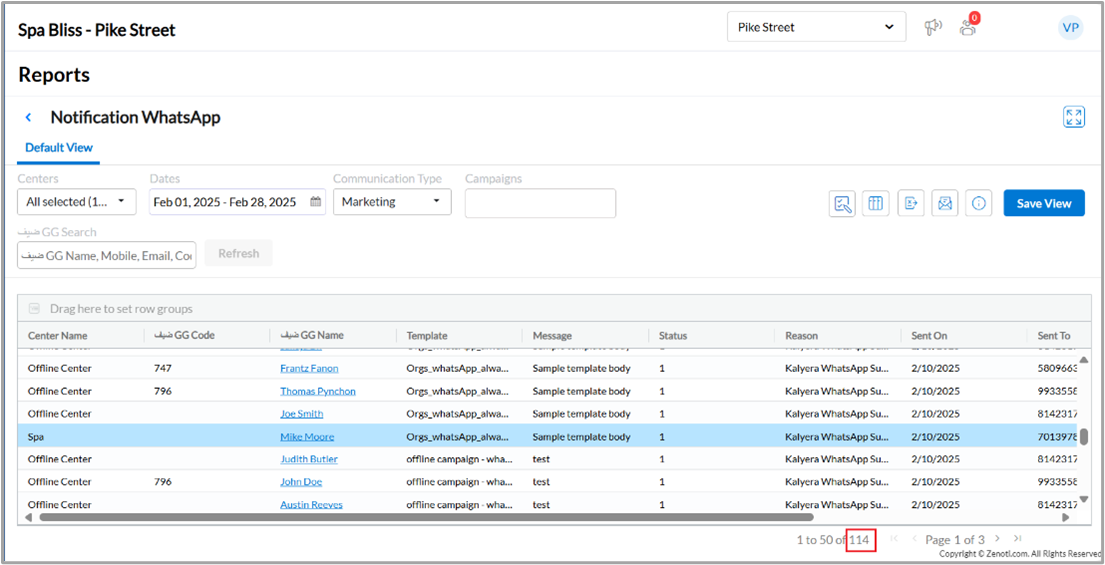
You can now track your WhatsApp credit usage for both transactional and marketing messages through the Notification WhatsApp report.
View the total number of messages sent via WhatsApp during any selected period to accurately monitor your credit usage.
How to use:
- At the organization or center level, go to Reports.
- Search for and select the Notification WhatsApp report.
- Use the Dates, Communication Type, and Campaigns filters to filter the report as required.
- To view the WhatsApp credits used for the selected filters, check the total number of notifications sent at the bottom-right of the screen, next to the page number.
This feature is not enabled by default. Reach out to your administrator to enable this feature.
Learn more: For more information, refer to the WhatsApp Notification Report article.
| Glossary | N/A | N/A |